Showing posts with label WINDOW. Show all posts
Showing posts with label WINDOW. Show all posts
how to farmat computer and install windows
how to farmat computer and install windows
our Windows XP PC is corrupted and you want to format your Windows XP or
you want to install a fresh copy of Windows XP with Service Pack 3 and
you do not know how to do this or you don't want to do any mistake
during formatting, then follow these simple steps.
Start your pc and press key F2, F12 or delete key (Depends on your PC model). Your PC Bios settings will be displayed. Find boot menu. In boot device priority select CD-ROM as first boot device.
Insert your Windows XP cd and restart your pc. Your pc will boot from CD and windows installation will start. Press enter at this screen
Accept License agreement by pressing F8 key.
Select hard drive partition for installation of XP.
If you want, you may create separate partition at this screen by pressing 'C' key and defining the size of partition.
Now select your desired partition for installation of Windows XP and press enter.
Choose to format the partition. Choose NTFS quick.
Setup will format the partition.
After formatting, Setup will start copying files on to the hard disk.
fter copying of files, setup will start installing Windows. You can see the progress in the progress bar on left pane.
Select desired language and regional settings, when prompted by setup.
Enter windows key. This usually comes with windows installation disk, written behind the pack. You can also buy a key online from microsoft.
Type a name for your computer. If you need, you can also type a password to login or else you can leave it empty.
Select time and date settings and time zone according to your country.
Provide network settings for networking pc's or select typical settings and press enter
Setup will install devices and register components.
After completion setup will do a cleanup of files and will restart your pc automatically. At this stage you can remove CD from drive.
Setup will install devices and register components.
Window asking driver solution??
ReMEMDER
>Don't forget to backup your important data before formatting.
- If you have had any viruses or malware of any sort on your computer before, try to copy only any files that aren't infected by it, if possible.
[SOLVED] computer asking driver during window installation
NOTE
IF AHCI NOT FOUND DISABLE ide bUSMASTERING
1. Intended audience
This article is for users who want to switch SATA controller from IDE-compatible mode (aka ATA-compatible mode) to AHCI mode without reinstalling Windows XP.Primary motivation for such a switch is to gain additional performance from disk I/O (SATA NCQ), especially for SSD hardware. Also recommendations from this article are useful in dual-boot configurations, where other OS must use SATA controller in AHCI mode, and Windows XP as a first OS is using SATA controller in IDE mode.
2. Check prerequisites
- Make sure your operating system is Windows XP. If you are using Windows 7 or Vista, then read this article.
- Reboot your PC, enter BIOS setup (press DEL or F1) and make sure that currently SATA controller is configured in IDE mode; and support of AHCI mode exists in BIOS.
3. Find or download F6 textmode AHCI driver for your SATA controller
- Find out the name of your chipset (south bridge). It should be in the user guide of your motherboard or notebook, or at the manufacturer's website. Also one can try to find the SATA controller in the Windows Device Manager under "IDE ATA/ATAPI controllers" or "Storage controllers".
- Check your motherboard/notebook driver CD, try to find F6 textmode AHCI driver for your chipset (southbridge). F6 textmode AHCI driver consists of TXTSETUP.OEM, one or several INF files(s), SYS file(s) and CAT file(s). SYS file is a driver itself, CAT file is a catalog of digital signatures to verify integrity of the driver, and INF is an informational file for Windows operating system how to detect hardware, and how to install/uninstall the driver. For example, Intel AHCI driver for ICH10R chipset consists of iaahci.cat, iaAHCI.inf, iastor.cat, iaStor.inf, IaStor.sys, and TXTSETUP.OEM.
- If you could not find F6 textmode AHCI driver on the CD, check manufacturer's website of the motherboard/notebook, and also check manufacturer's website of the chipset. For example, for ASUS EEC PC 901 netbook with Intel ICH7-M southbridge, you should check both ASUS and Intel websites. Also downloading latest drivers from manufacturer's website may be helpful if old version of driver from motherboard/notebook CD was found, but didn't work because of alleged bugs. (But bear in mind that sometimes new version of drivers has new bugs, not present in old version.)
4. Perform upgrade installation of AHCI driver via Windows Device Manager
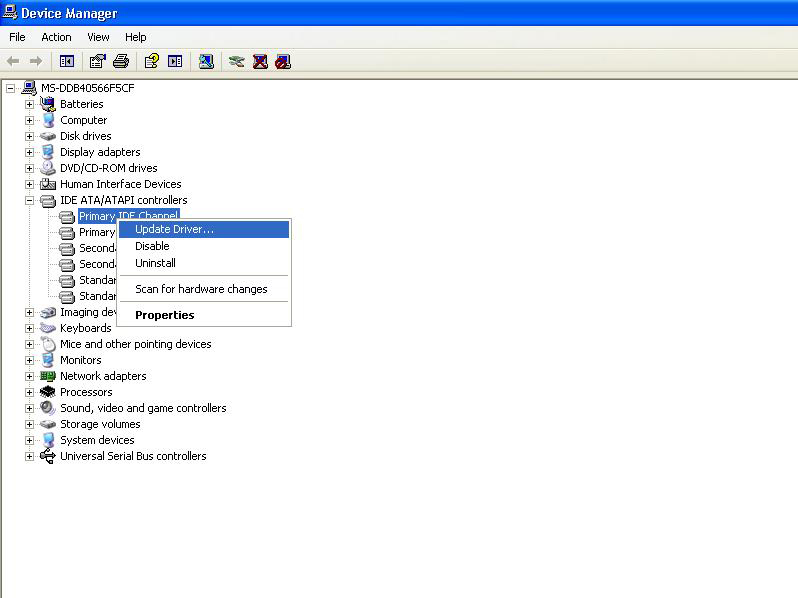
Right-click My Computer, choose Properties, then Device Manager.Expand IDE ATA/ATAPI controllers, then right-click on Primary IDE Channel and choose Update Driver... from the context menu:
5. During reboot, make configuration changes in BIOS setup
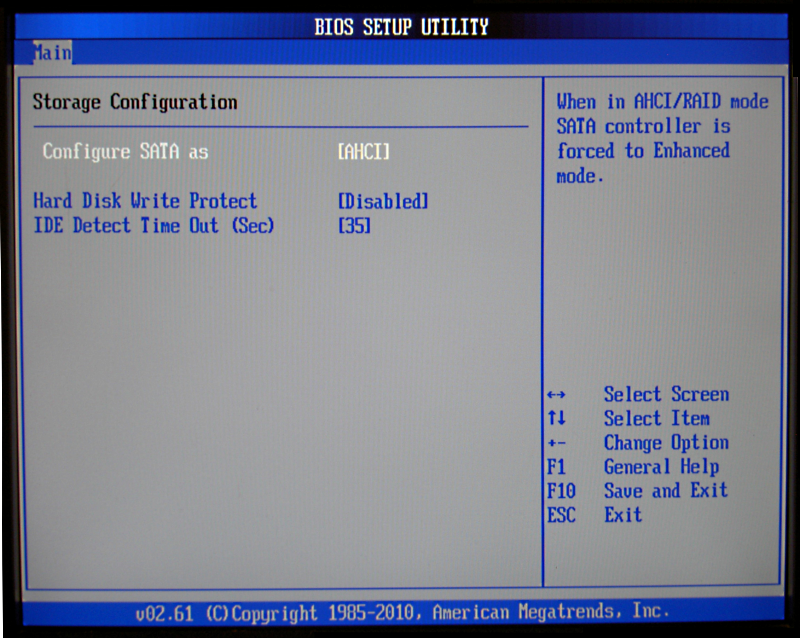
During reboot, enter BIOS Setup (press DEL or F1 key) and enable AHCI mode for your SATA controller:
Subscribe to:
Posts (Atom)